Managing data
Manage Data
In this article we will tackle viewing, editing and creating records in the data manager for a given connection.
If you want more information on how to connect to your database check out this article: Connecting to databases
View data
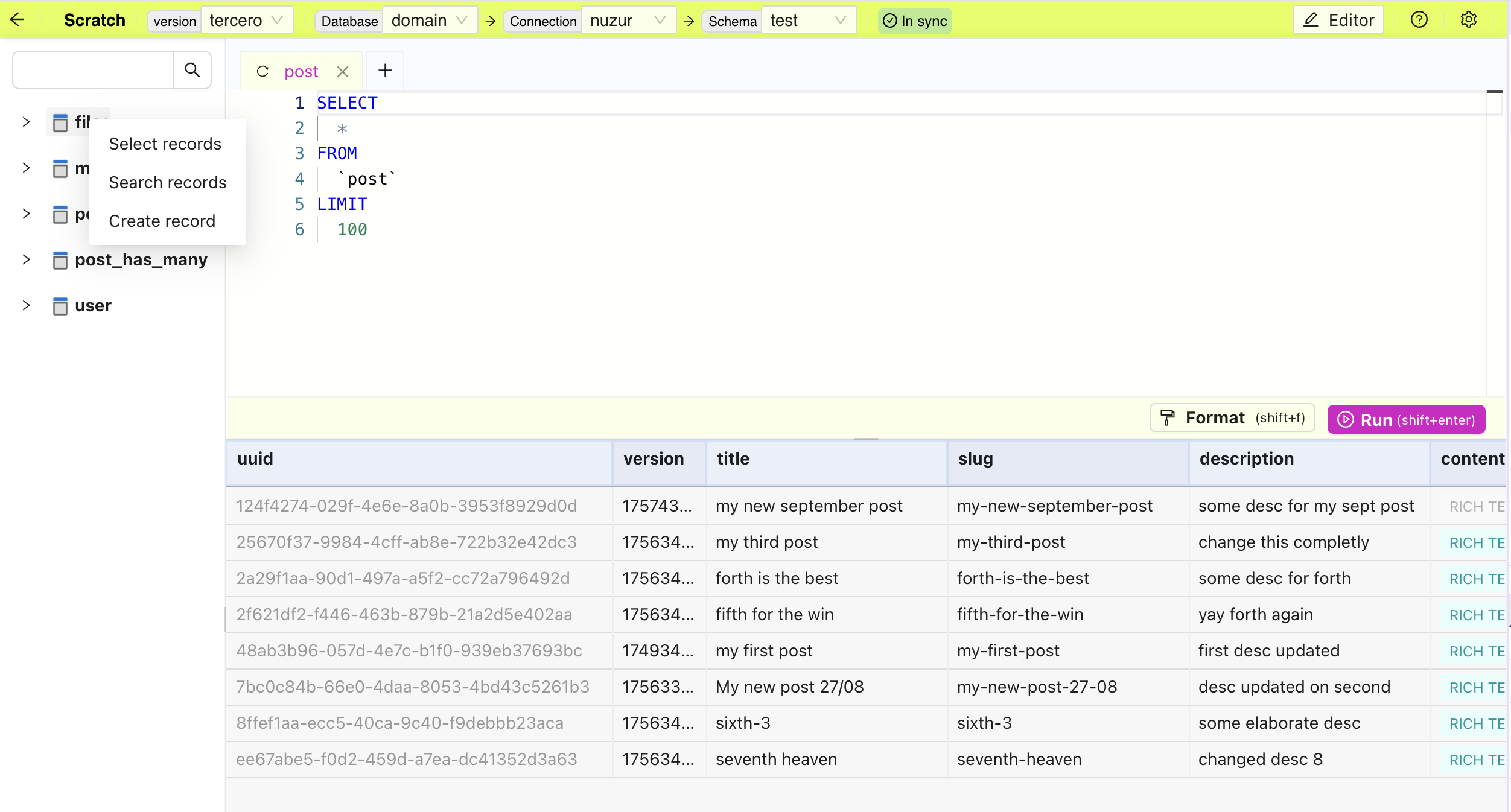
To view data you can write a SELECT query in the query editor then hit the "Run" button or "shift+enter" on your keyboard.
Alternatively you can right click on any entity in the left panel and click on "Select records" to open a new tab with the SELECT query for you
Edit records
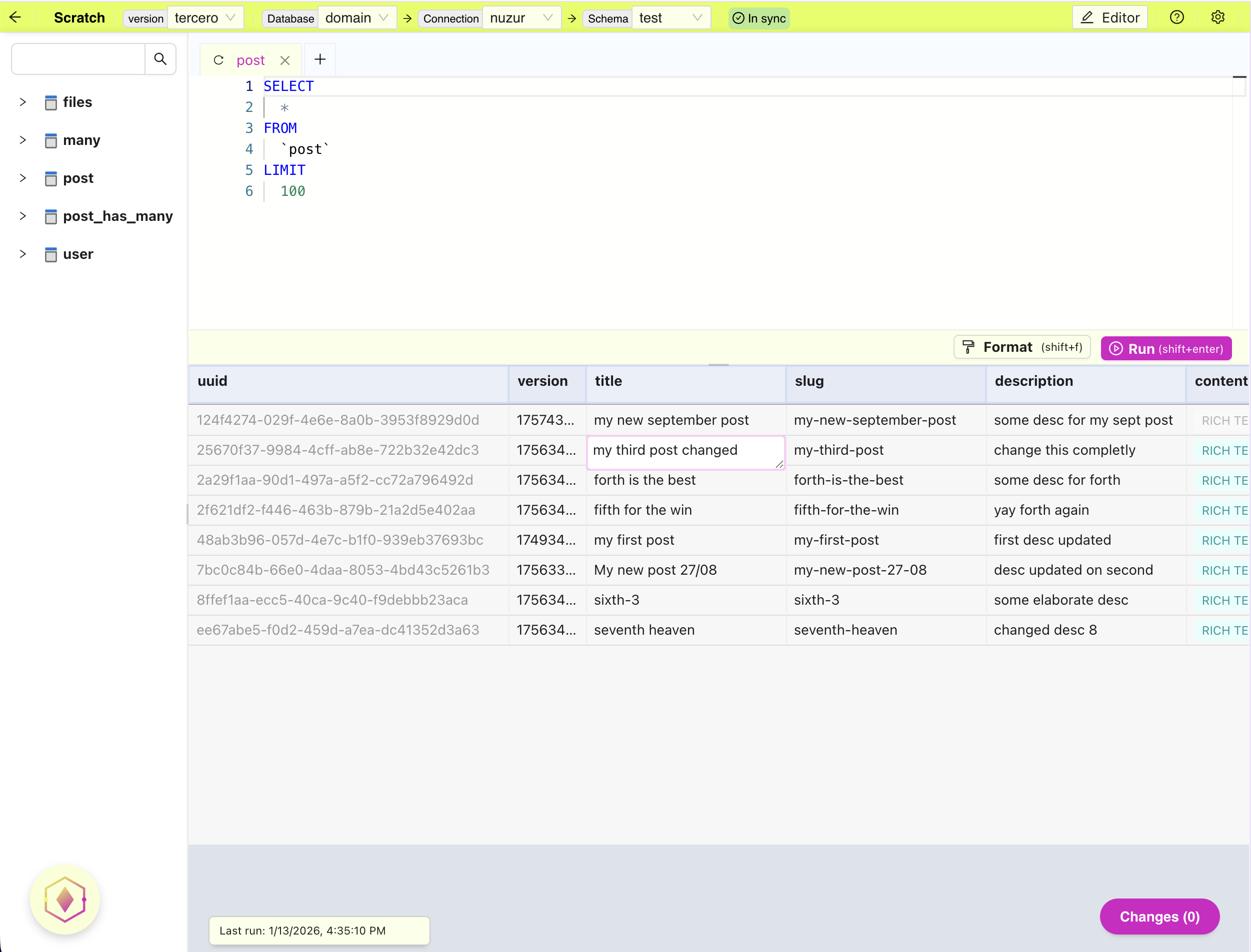
Editing records is enabled when selecting a specific entity. Once you can see the record you are interested in, double click on any field to edit it's value, then press enter to commit your change.
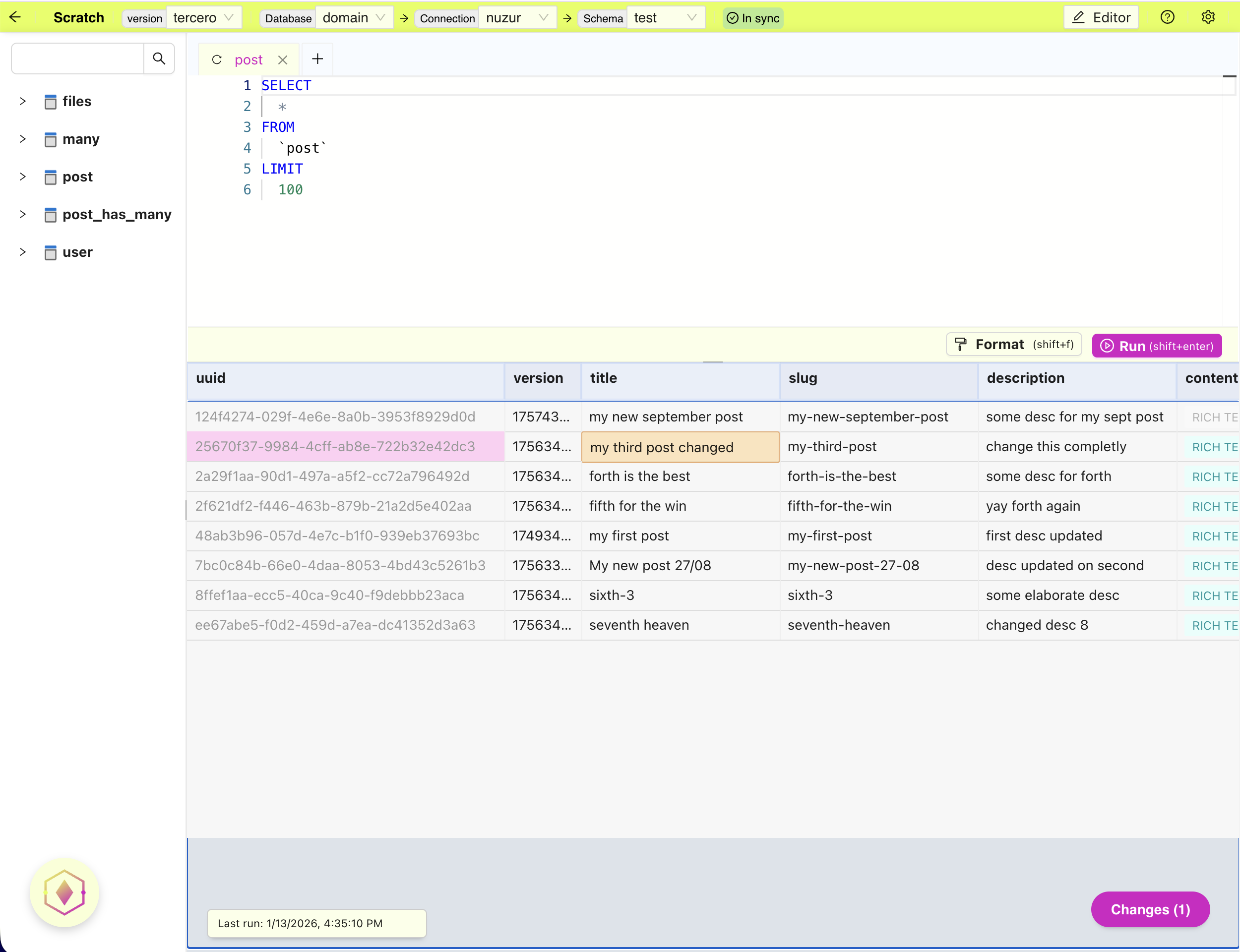
Edited fields will be highlighted in orange and the counter at the bottom right will be updated. You can always click on the button to see the details of the change.
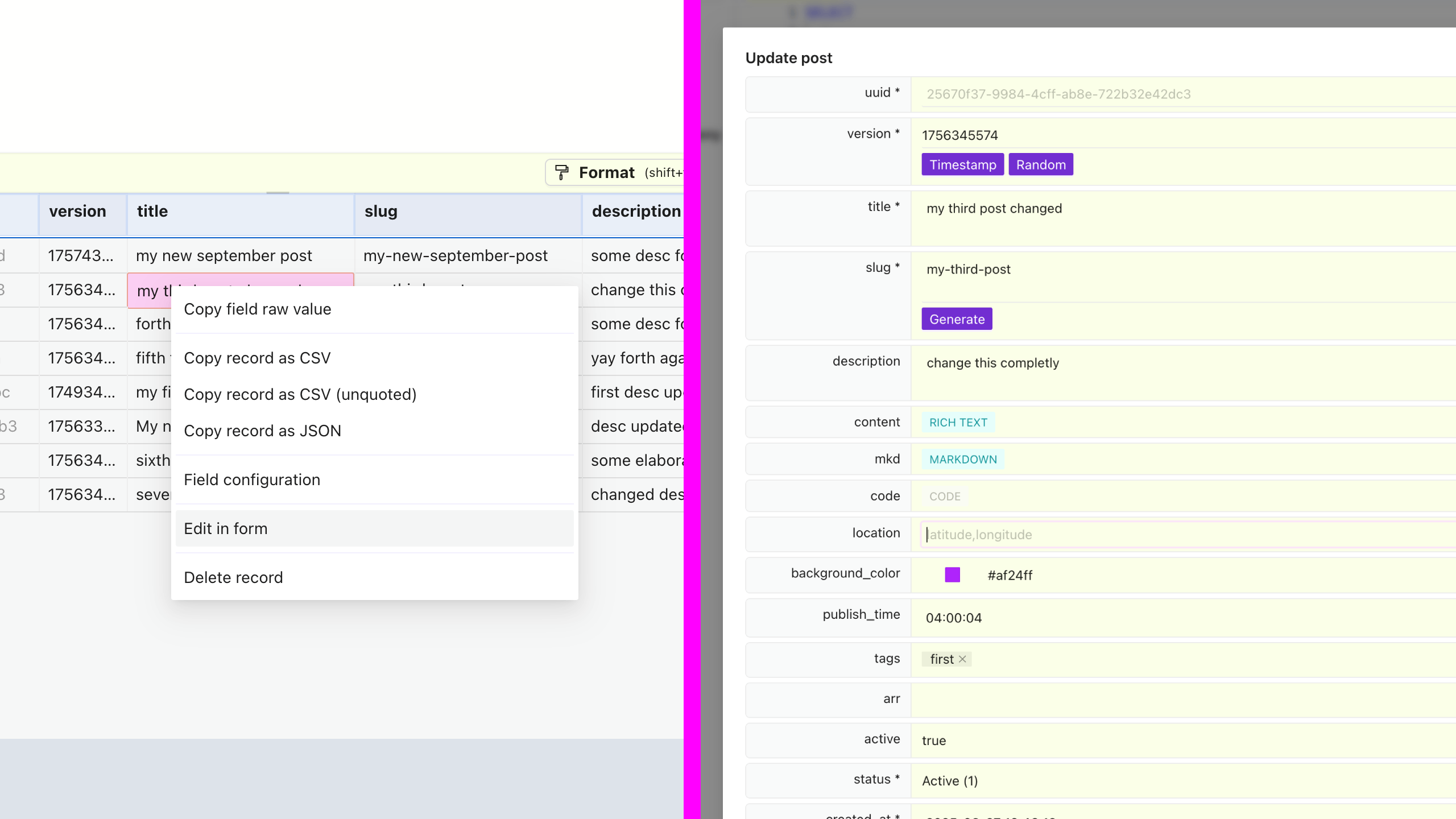
Alternatively you right click on the record and click on "Edit in form", this will display a modal with a form that represents the entity to edit.
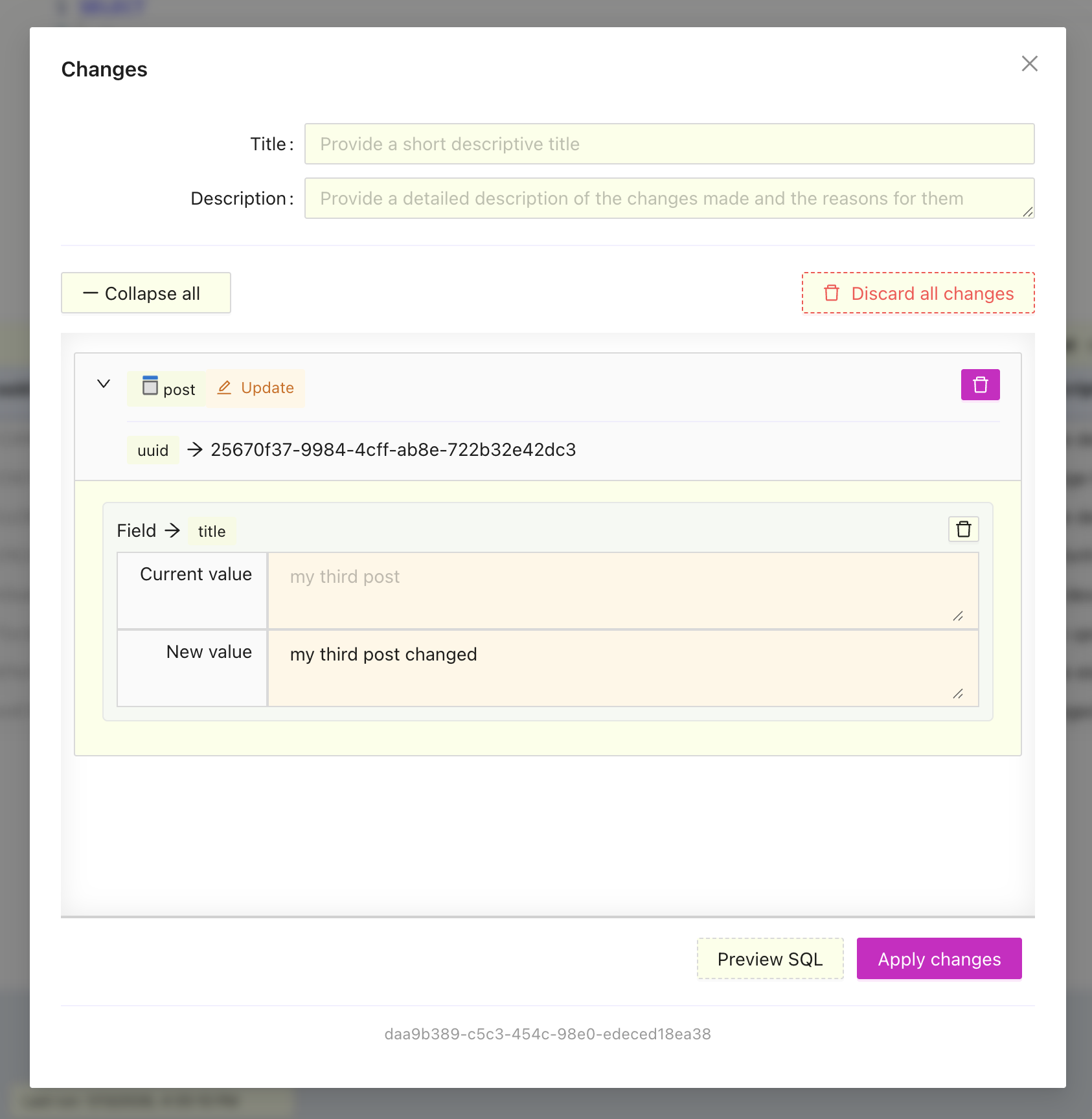
Once you have finished editing records, click on the "Changes (n)" button in the bottom right corner, review your changes, provide a title and description of the changes, then you will be able to either apply your changes or send them for review based on your permissions.
Create records
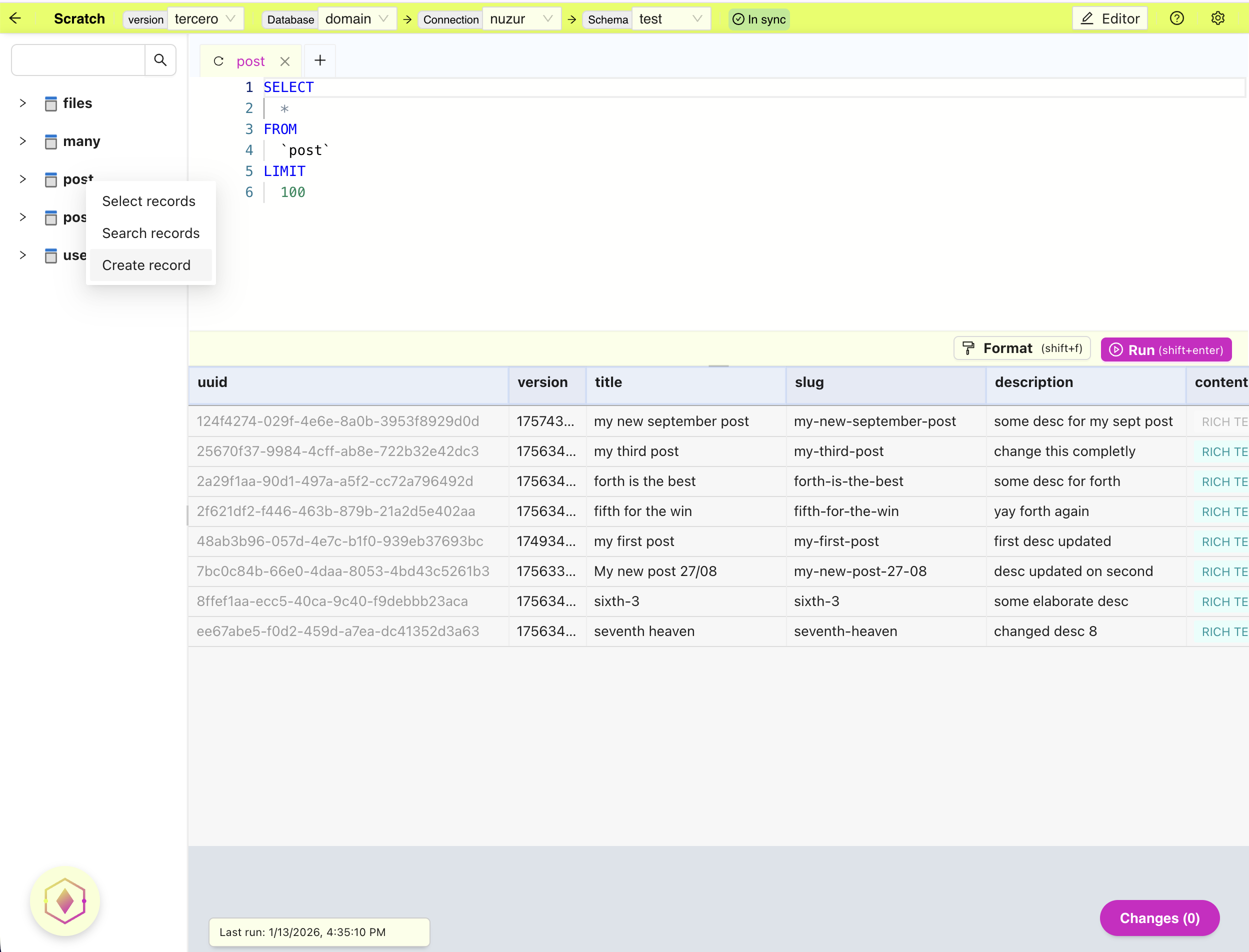
To add records you can right click on the entity you want to add a record for in the left panel then click on "Create record" this will open a modal with a form to fill in the record values, once you are done click "Save". The new record will appear as part of your changes.
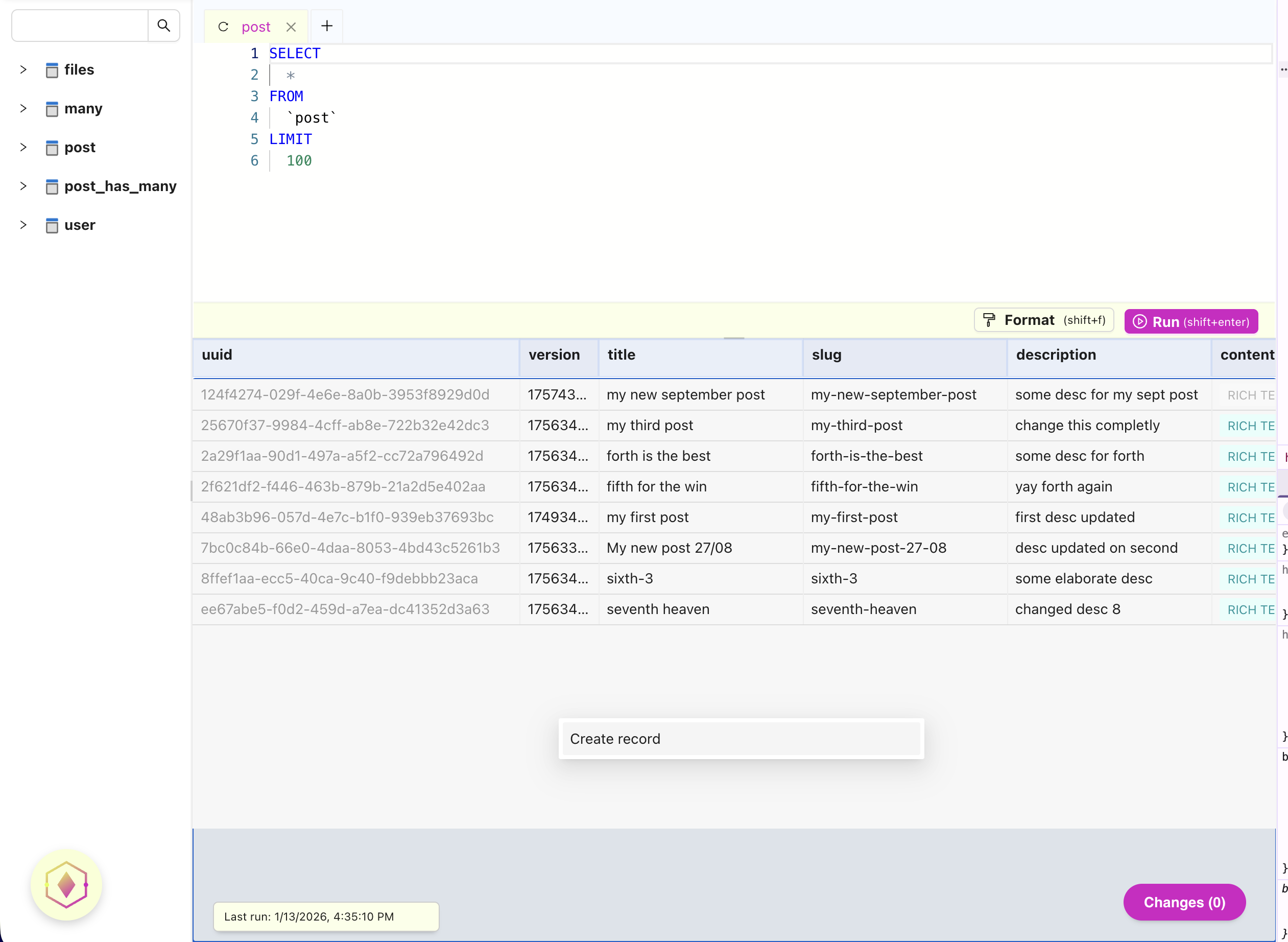
Alternatively, if you have selected the records for the entity you can right click at the bottom free area of the records and click on "Create record"
Once you are finished creating records follow the same steps mentioned above for editing records by click on the "Changes (n)" button in the bottom right corner.