Managing change requests
Change Requests
In a team setting, when editing the model in the editor or data in the data manager, if the user is forced or decides to go through review, their changes will not be applied until a team admin approves the changes.
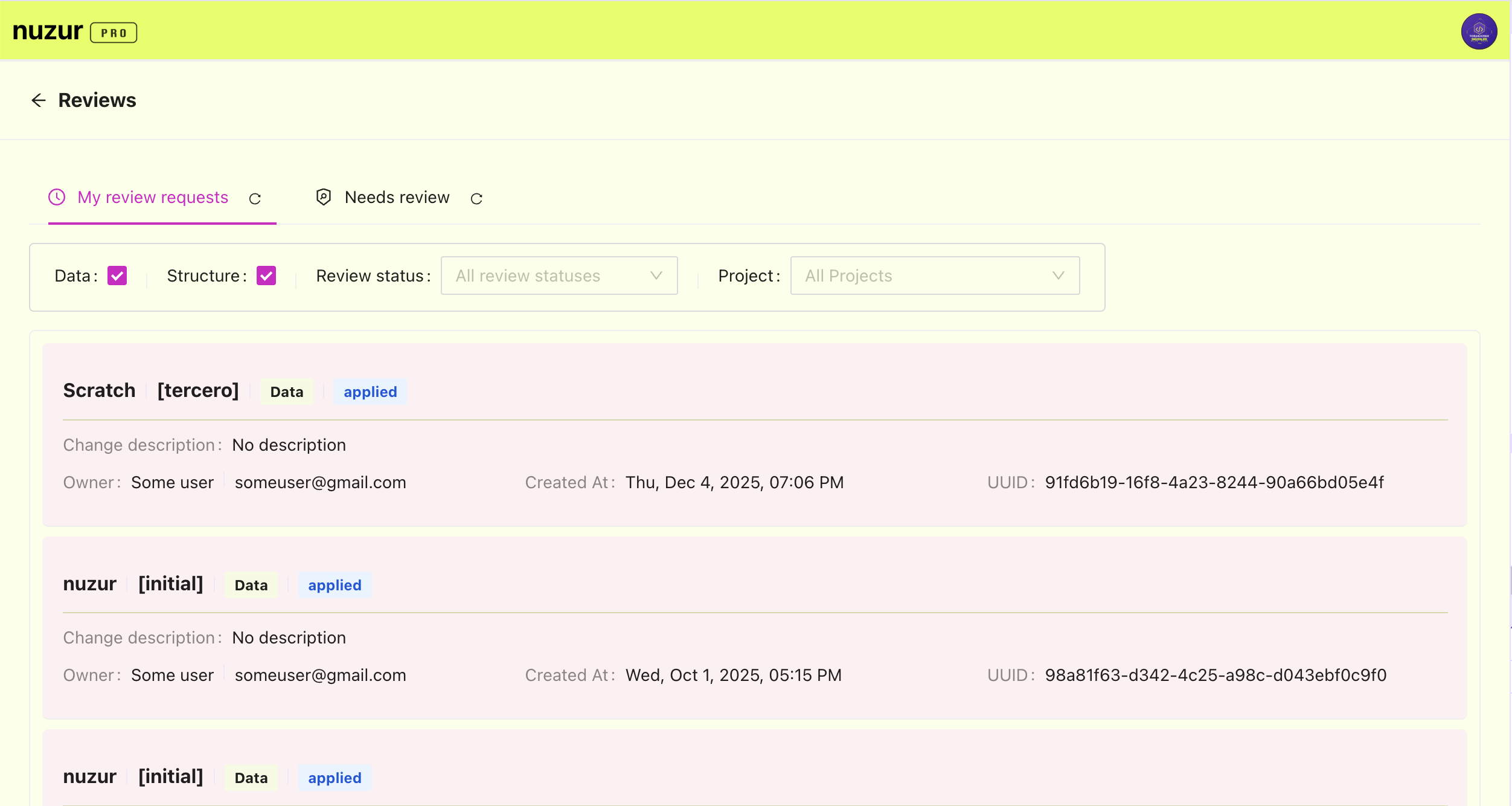
Once the user submits their changes for review they will appear for them in the reviews section under "My review requests", and they will appear under "Needs review" for the admin users.
Reviewing a model change
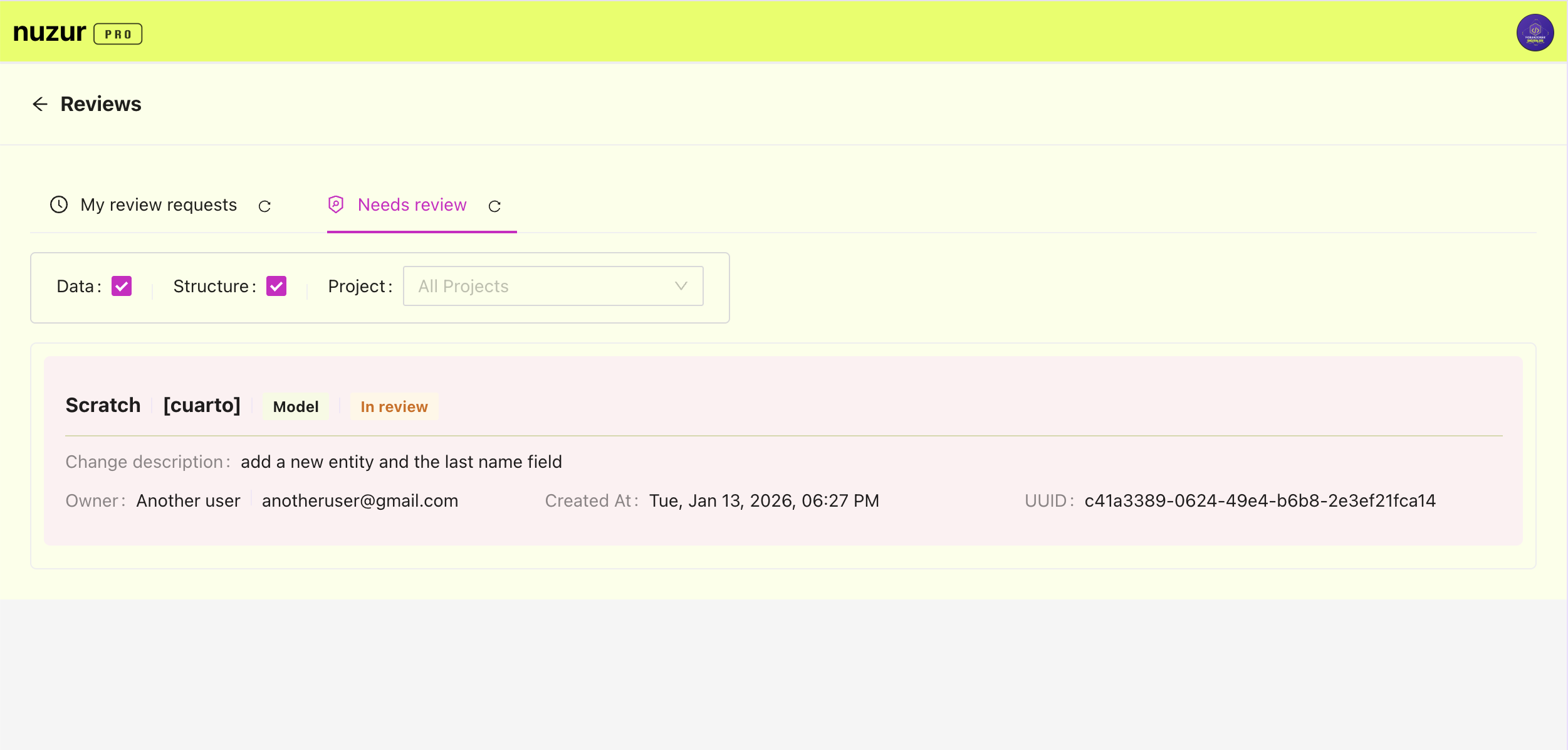
Model changes to review can be identified by the model tag:
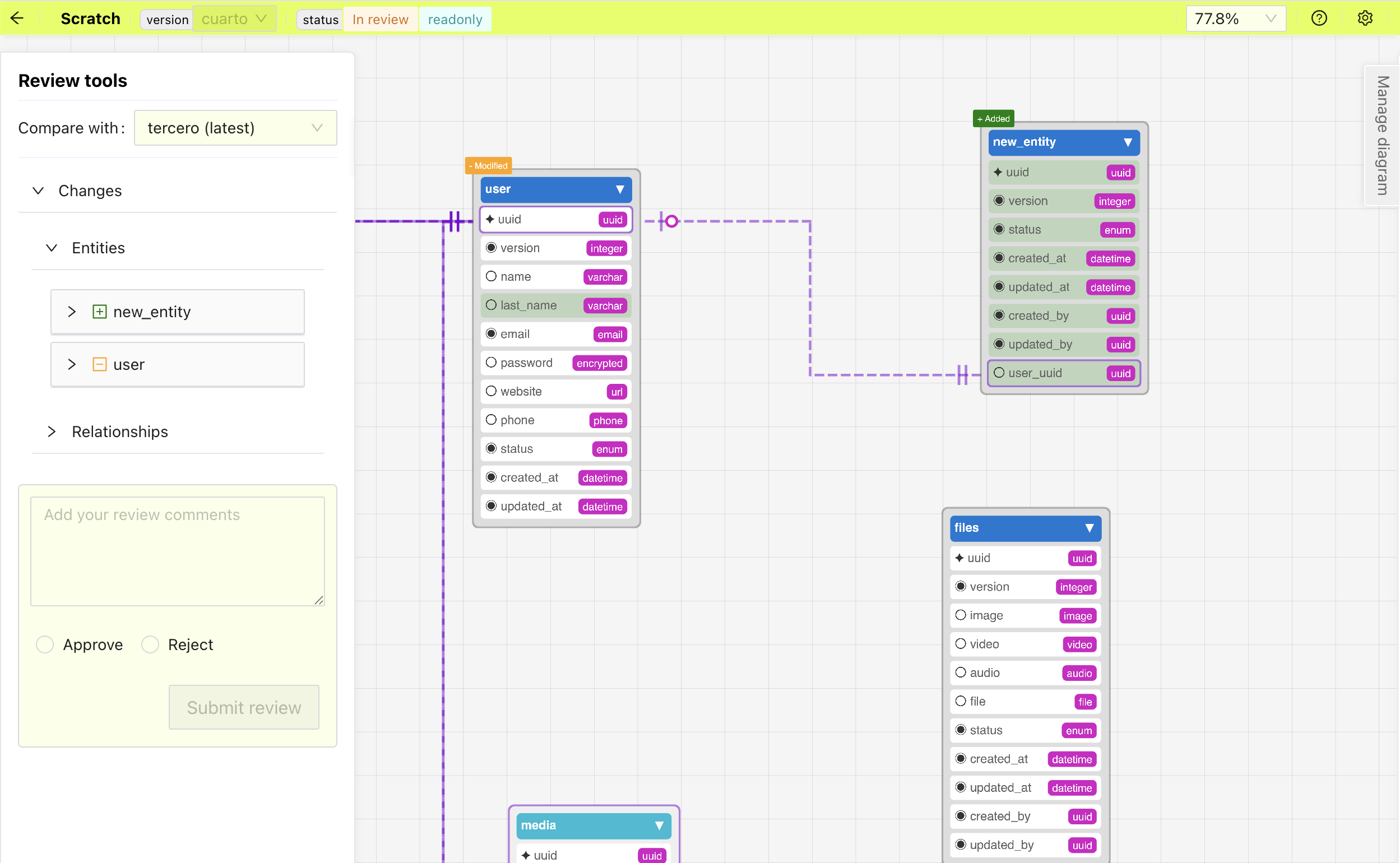
Upon clicking on the change to review, a special version of the model editor will open, with a panel on the left that display details of the changes made, the changes will also be highlighted in the model diagram to help understand the changes.
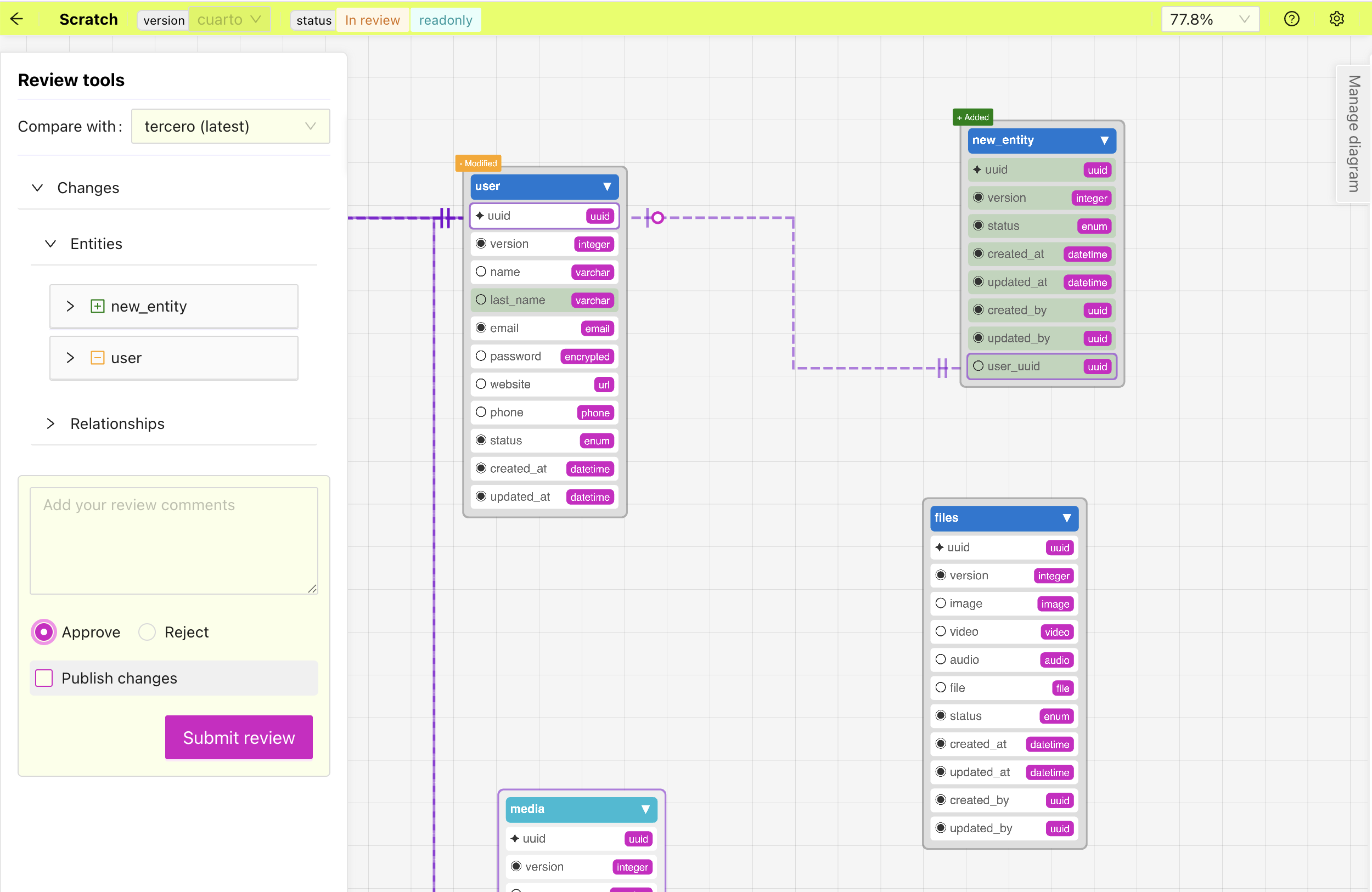
You can at this point either approve or reject the changes and provide a message to user if needed to help them understand your decision.
When approving you can decide to publish the changes yourself and make them available to other or let the author do it.
It is recommended to publish the changes as soon as possible to avoid any possible conflicts between different versions, as you will need to resolve them manually. It is also recommended to coordinate these changes withing the team, letting others know about any planned changes.
Reviewing data changes
Data changes to review can be identified by the data tag:
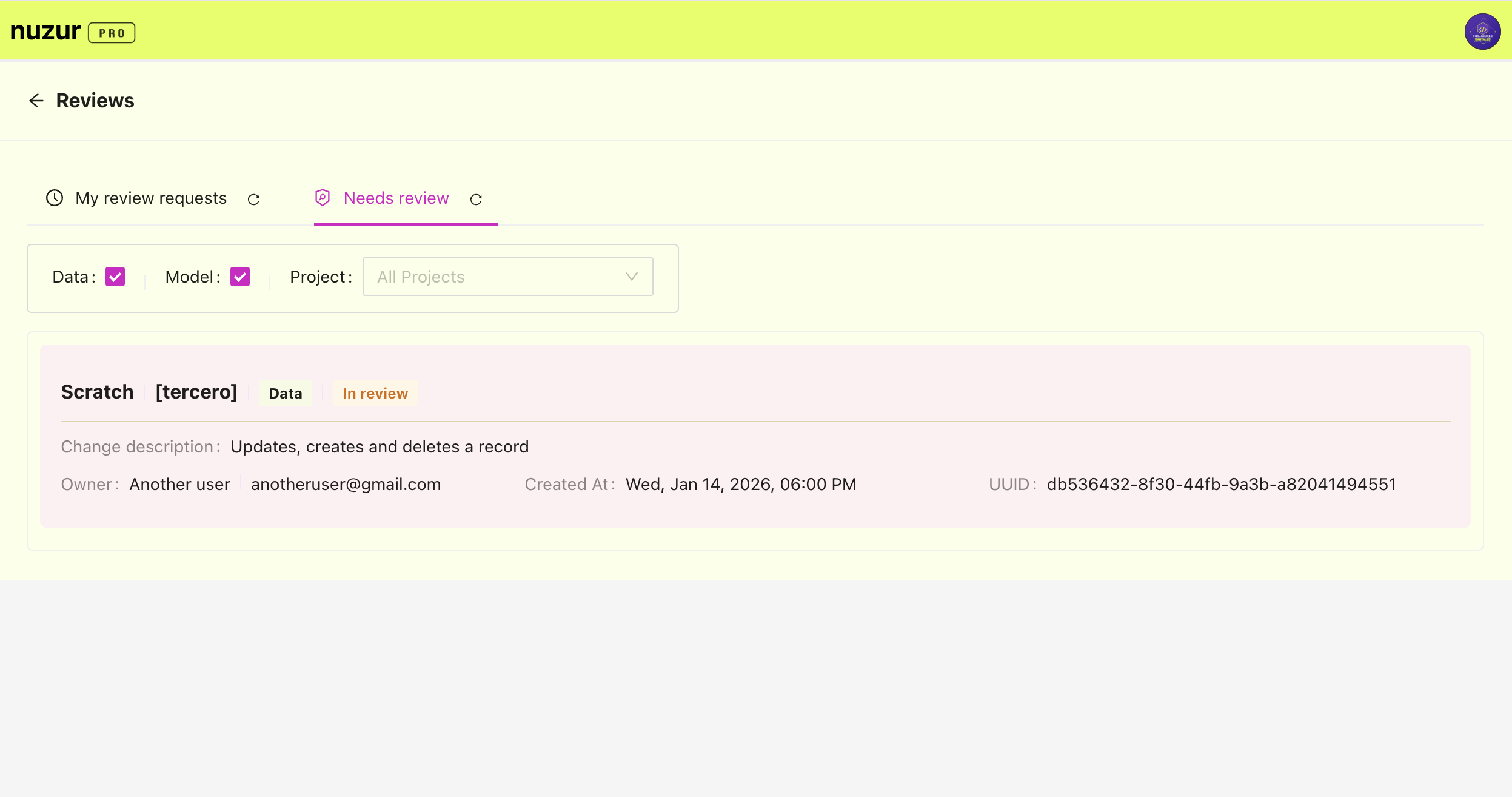
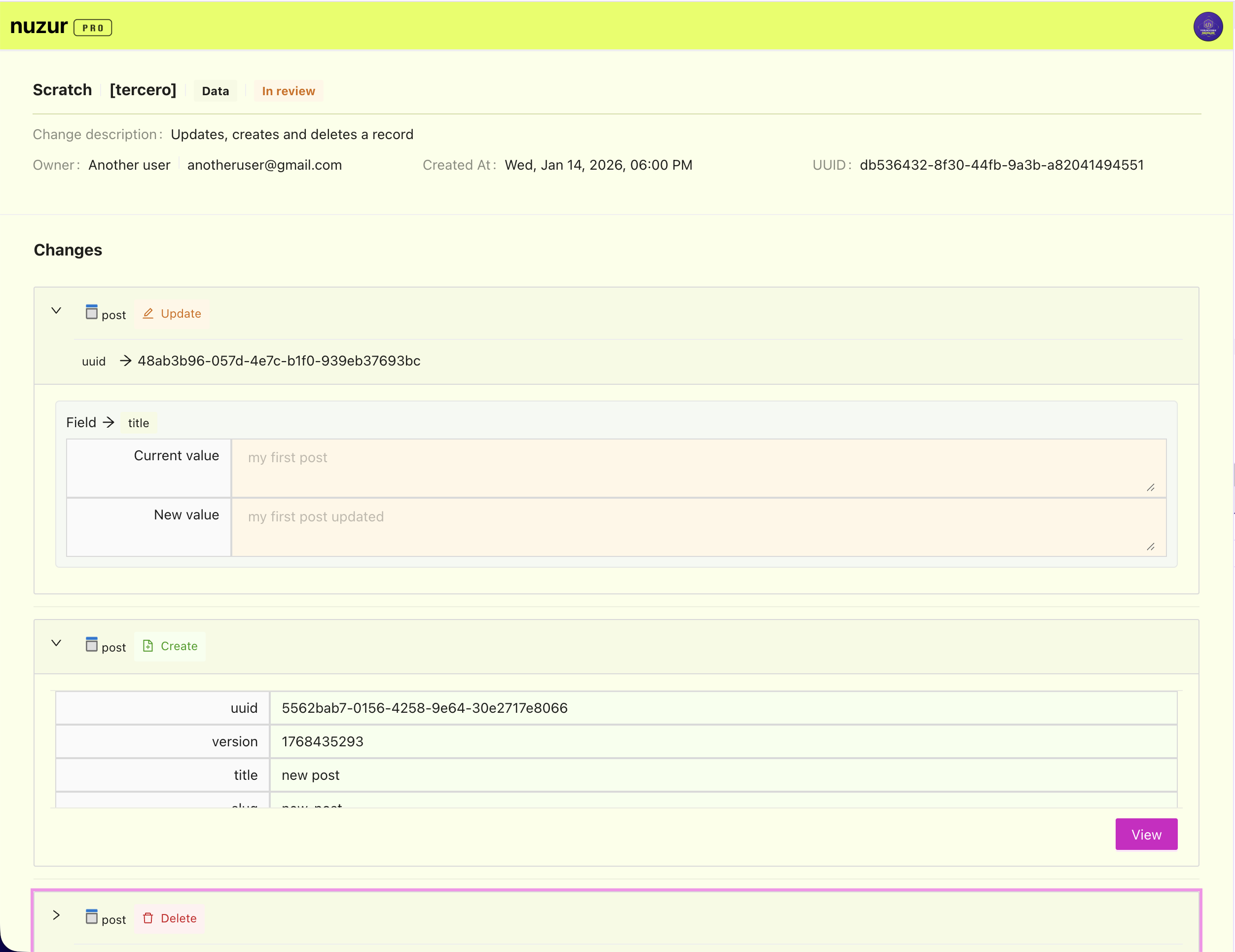
Upon clicking on the change to review, you will be redirected a screen that shows all the changes and their details.
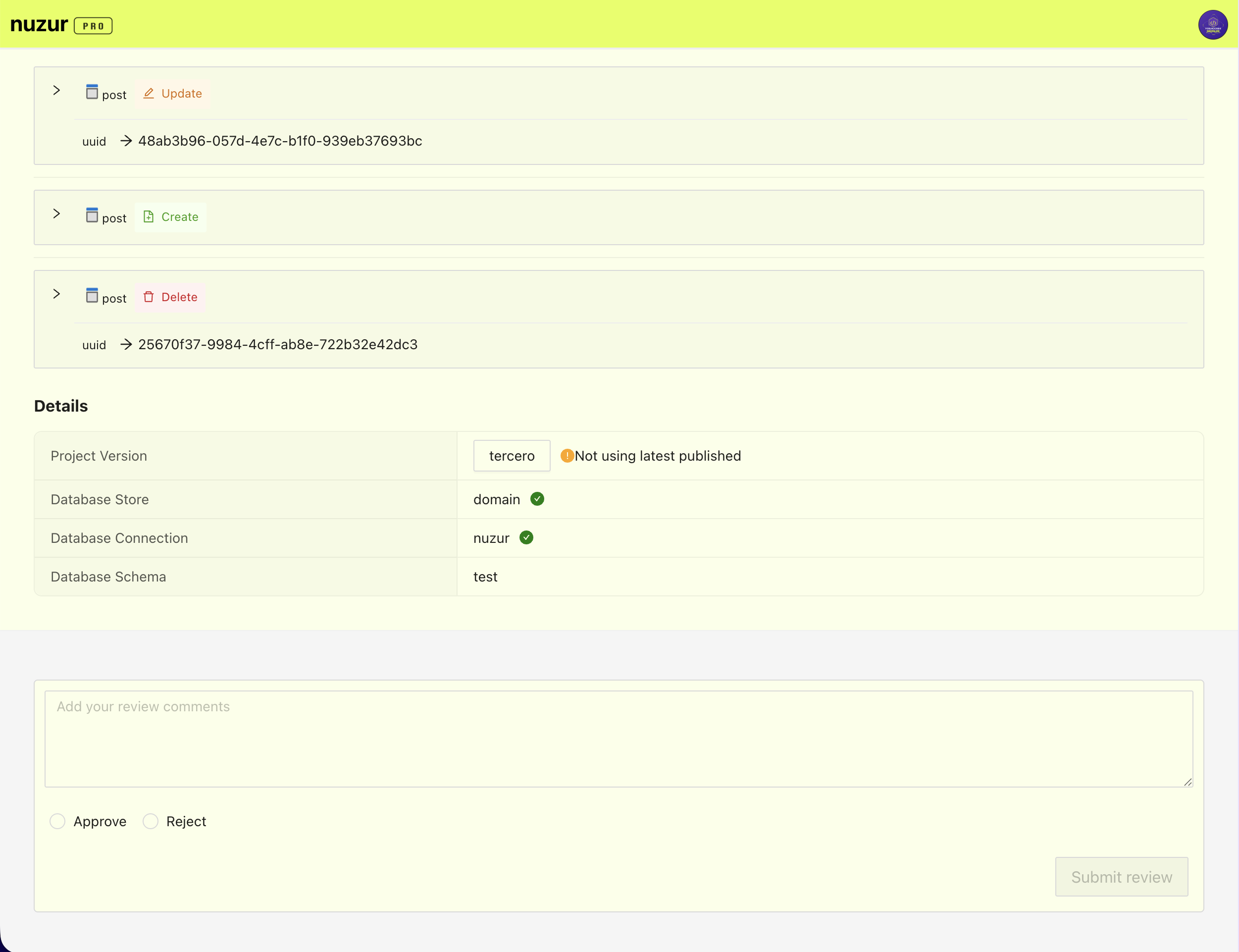
At the bottom of the screen you will see an option to either approve or reject the changes and include a message to the author.
When approving you can decide to publish the changes yourself and make them available to other or let the author do it. This step will execute the necessary query to apply the listed changes.
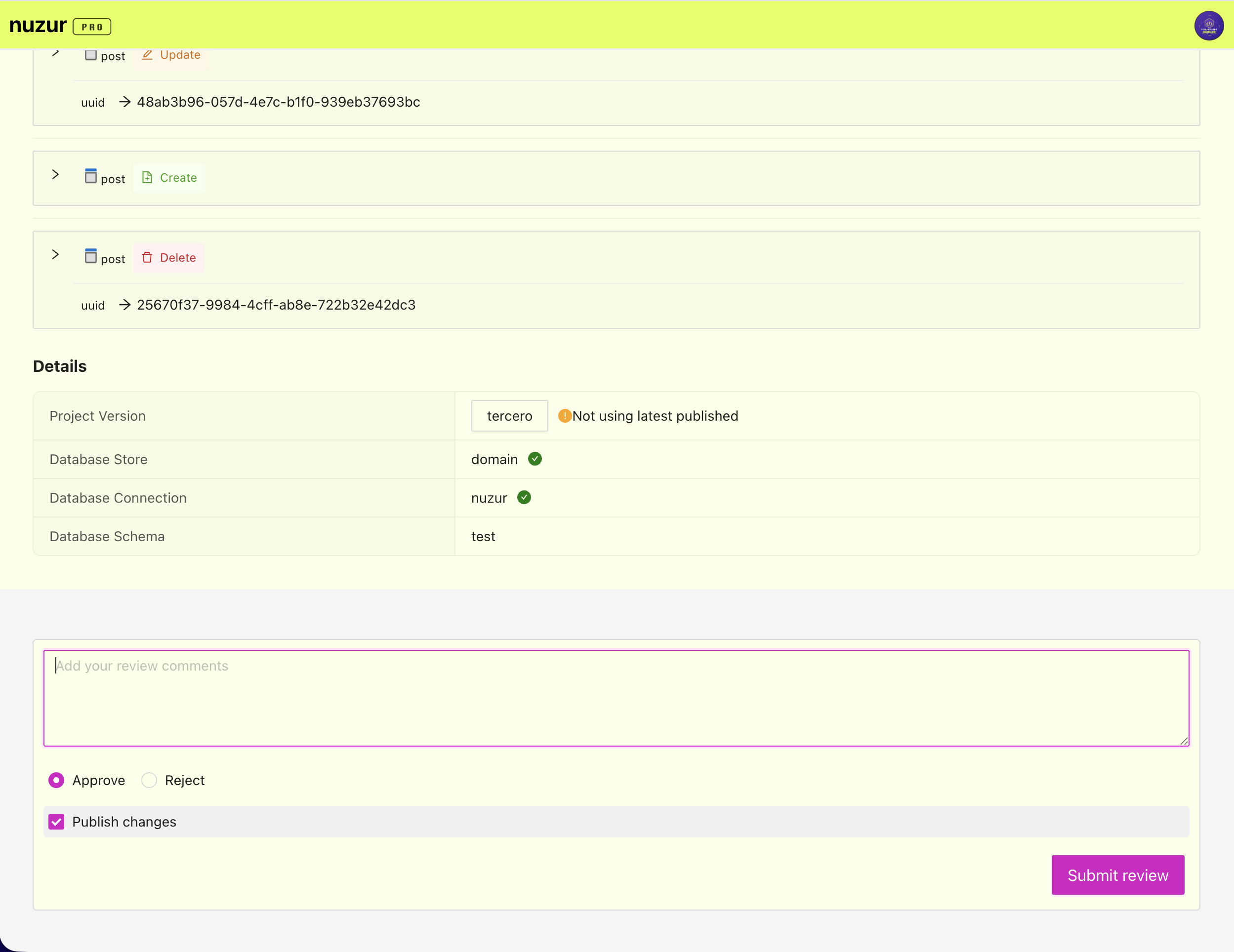
It is recommended to publish the changes as soon as possible to avoid any possible conflicts or failures. It is also recommended to coordinate these changes withing the team, letting others know about any planned changes.